How to Change Zoom Level in Excel. If you’ve ever squinted at a giant spreadsheet or accidentally zoomed out into oblivion while scrolling, you know how much Excel zoom affects your day-to-day work. Getting comfortable with it isn’t just a nice-to-have — it genuinely changes how fast and accurately you can move through your data.
Below, I’ll walk through the different ways to adjust Excel zoom, a few keyboard shortcuts worth memorizing, the most common zoom headaches people run into, and some habits that’ll make your spreadsheet life easier overall.
What Exactly Is the Excel Zoom Level?
In simple terms, the Excel zoom level controls how big or small your worksheet looks on your screen — nothing more, nothing less. You can push it anywhere from 10% all the way up to 400%, depending on what you’re doing:
- Low zoom (10%–70%) is great when you need to see a big chunk of your layout at once
- 100% zoom is the standard, default view most people stick with
- High zoom (150%–400%) comes in handy when you’re doing detailed editing work
It’s worth noting that this setting only changes how things look — it has a direct effect on which rows and columns are visible, how large the text appears, and overall readability, but it doesn’t touch your actual formatting.
The Zoom Slider (Easiest Method)
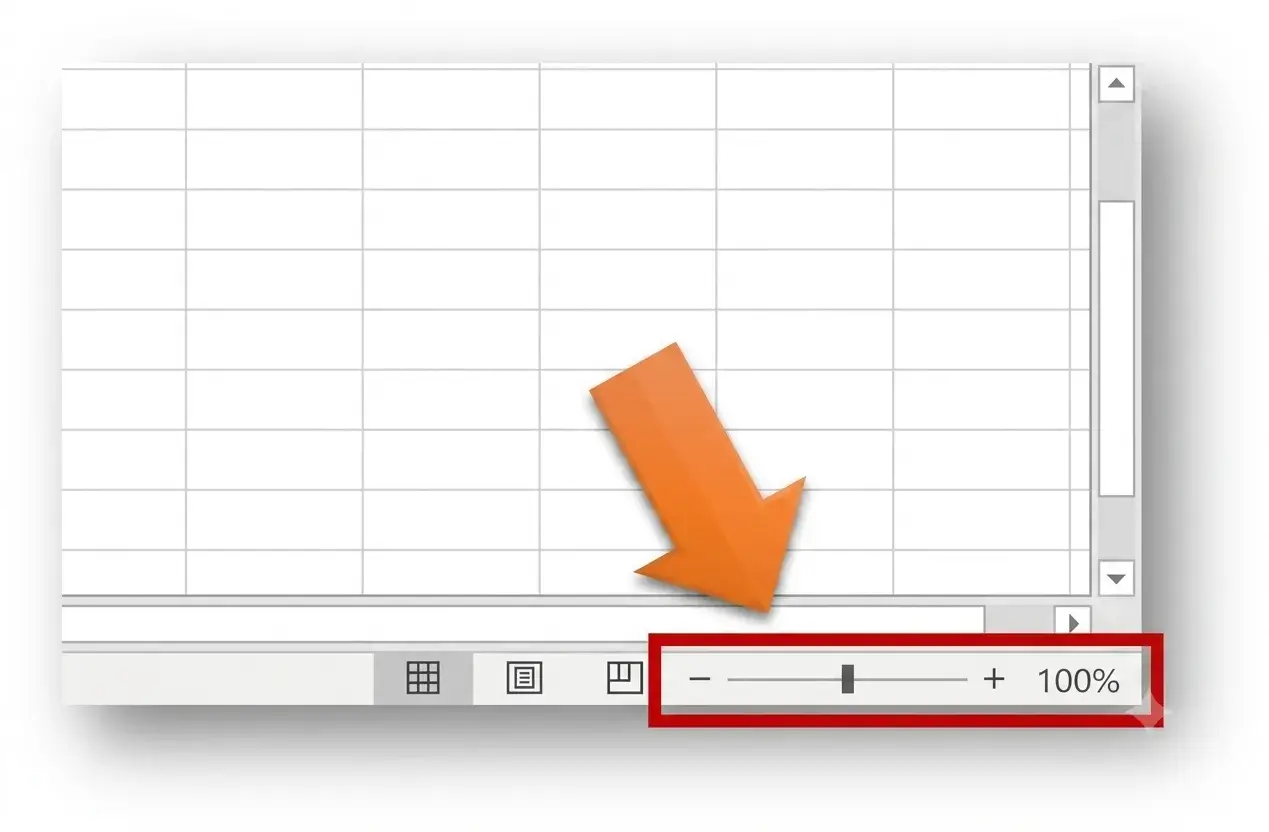
If you’re not big on shortcuts, the zoom slider tucked into the bottom-right corner of the Excel window is your friend.
Here’s the simplest way to use it:
- Look at the bottom-right corner of the screen
- Find the zoom slider
- Either drag it or tap the plus/minus buttons on either side
- You’ll see the percentage update instantly as you go
It’s about as beginner-friendly as it gets — no memorization required.
2. Keyboard Shortcuts for Zooming In and Out
For those who like to keep their hands on the keyboard there are a few shortcuts worth being aware of.
What is the Excel shortcut key for zooming?
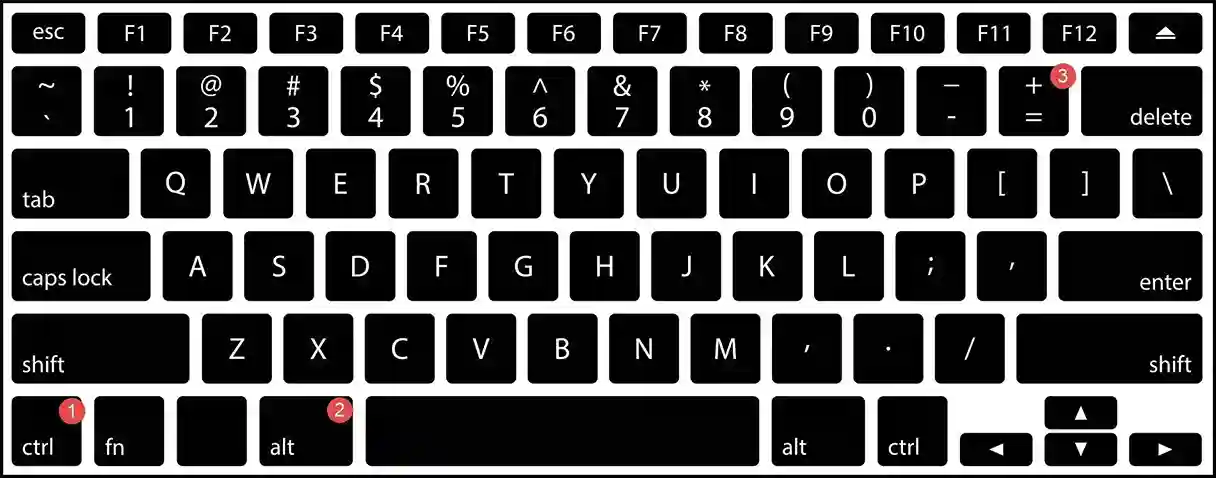
- Zoom in or out: Ctrl + Alt + + or Ctrl + Alt + –
- Snap back to 100%: Alt + W + J
There’s also the Ctrl + Mouse Wheel trick — just hold Ctrl and scroll, and the zoom adjusts on the fly. Or, if you’d rather go through the ribbon, hitting Alt + W + Q pulls up the Zoom dialog box directly.
These shortcuts tend to save the most time for people who work in large spreadsheets all day.
3. Using the View Tab on the Ribbon
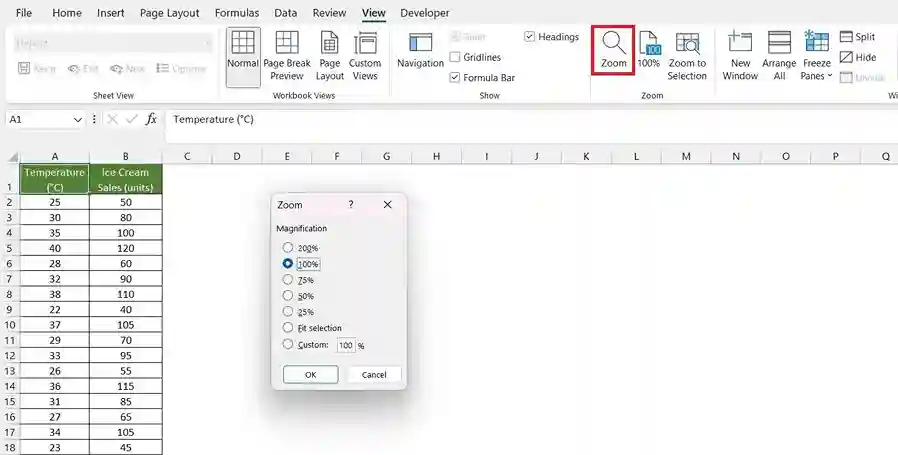
If you want more precise control over your zoom percentage, the View tab is the way to go.
Getting there:
- View tab
- Find the Zoom group
- Clicking on Zoom opens up the dialog box
From there you get a few handy options – preset levels such as 200%, 100% or 75%, the option to enter a custom percentage, an easy reset to 100% and the Zoom to Selection feature.
4. Zoom to Selection: Focus on Just the Data You Need
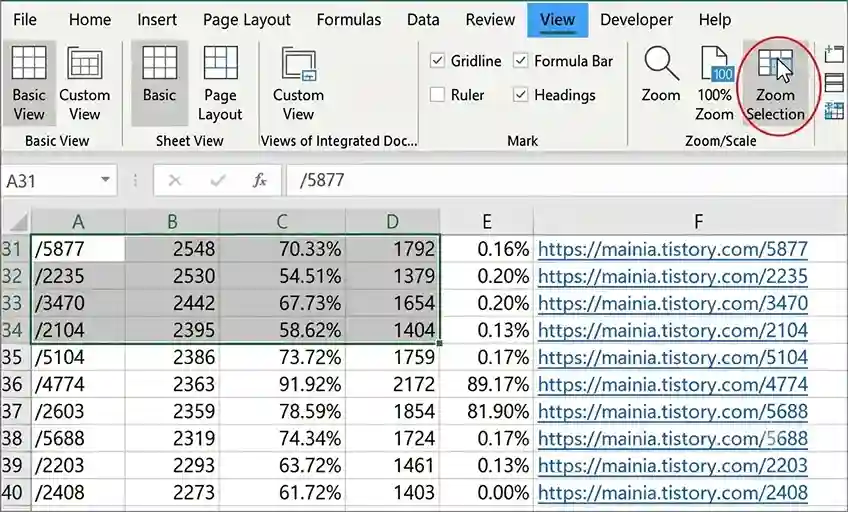
This one’s a favorite once people discover it. Zoom to Selection lets Excel automatically zoom into whatever range you’ve highlighted.
Excel will resize the screen to precisely suit that range if you pick your cells and then click Screen → Zoom to Selection.
5. How to Change the Default Zoom Level in Excel
A common question is How do I make Excel always open at 100% zoom?
The truth is that Excel does not have a global default zoom setting. However, there is a good workaround:
- Choose your zoom level
- Save the file as a template (.xltx)
- Use that template each time you start a new workbook
It’s not a perfect solution, but it’s the best way to ensure a default zoom level across your spreadsheets.
6. Adjusting Zoom on Mac
Mac users have a few options of their own:
- Command + Scroll (or a trackpad pinch) works well
- The zoom slider in the status bar is still available
- You can also get to it through View → Zoom
The trackpad pinch gesture tends to be the fastest option if you’re already used to it from other apps.
7. Why Does Excel Keep Zooming Out on Its Own?
This is a more common complaint than you’d expect, and it usually comes down to one of these:
- A mouse scroll wheel that’s acting up
- Trackpad sensitivity is set too high
- Settings on an external mouse
- Occasional Excel display glitches
If this keeps happening, try checking your mouse or trackpad settings first, then restart Excel, and disable touch gestures if the issue persists.
8. Zooming Without Changing Font Size
One thing to remember:zooming only affects what you see on your screen, it doesn’t actually change your formatting.
- And your font size is just the same
- The only thing that varies is the visual magnification
- This makes it especially useful for presentations where it is important to be readable
9. Setting the Same Zoom Across Multiple Sheets
Want every tab in your workbook to share the same zoom level? Here’s how:
- Hold Ctrl and click each sheet tab you want to include
- Adjust the zoom as usual
- Click any other tab to ungroup them
This keeps things visually consistent no matter which sheet you’re looking at.
A Few Best Practices
- Stick with 100% zoom for everyday work
- Bump it up when you’re doing detailed formatting
- Zoom out when you need the bigger picture
- Pair zoom adjustments with freeze panes for the best of both worlds
- Keep your layout clean, so it stays readable at any zoom level
Final Thoughts
As you become more familiar with Excel zoom, you will find that it really helps you to move smoothly through your spreadsheets. You can get there using the slider, using keyboard shortcuts, or using the View tab, but all of these methods get you to the same place: a workbook that is easier to read and faster to work in.
FAQ
Use Ctrl + Alt + + to zoom in and Ctrl + Alt + – to zoom out.
Save a workbook template with 100% zoom and reuse it.
Hold Ctrl and scroll down using your mouse wheel.